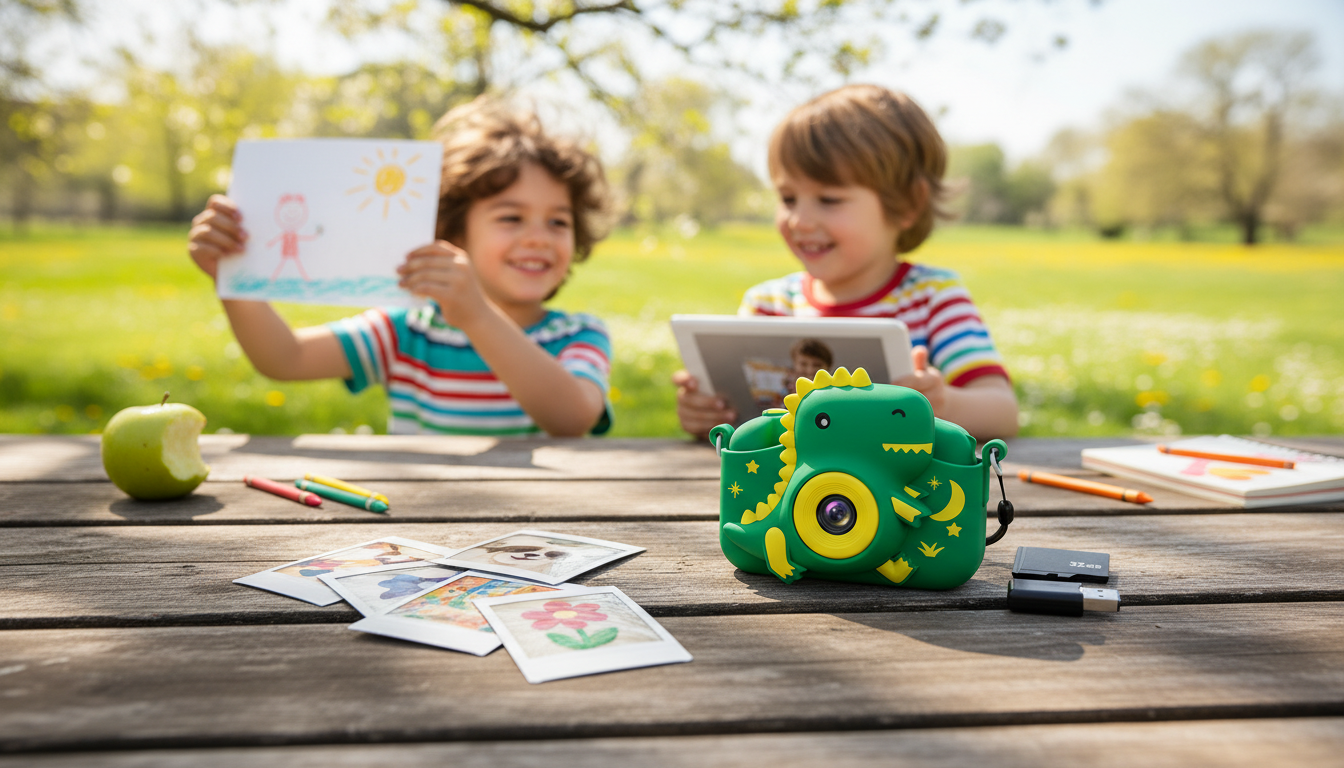
A kids digital camera helps children explore creativity, practice storytelling, and build confidence—without needing to borrow a phone. It’s a simple, kid-owned gadget that encourages mindful play: looking closely, choosing a subject, and capturing a moment on purpose. Below are the features that matter most for young users, easy setup habits that prevent frustration, and practical ways to protect and share their photos.
A child-friendly camera turns everyday outings into mini adventures. Instead of scrolling or apps, kids get a single, focused tool that rewards curiosity.
For families who also want a quick refresher on kid-safe tech boundaries, the American Academy of Pediatrics has guidance on healthy media habits here: Digital Media and Children. Privacy basics are also worth revisiting with any device that can store or share images: FTC: Protecting Kids Online.
Kids don’t need complicated specs—they need a camera that’s easy to hold, easy to understand, and tough enough for real life.
| Age range | Best priorities | Nice-to-have features |
|---|---|---|
| 3–5 | Extra-tough body, very simple buttons, wrist strap | Big icons, fun frames |
| 6–8 | Better battery, clearer screen, easy file transfer | Basic video, filters |
| 9–12 | Higher photo quality, more storage options, faster performance | Simple editing, time-lapse |
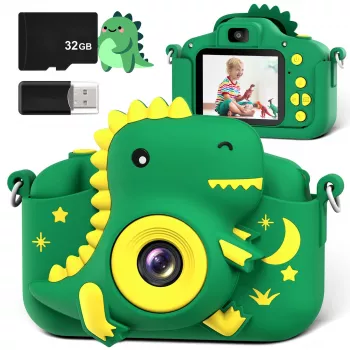
If the goal is “first camera” rather than “tiny smartphone,” a dedicated option keeps things simple. The Kids Digital Camera is designed for everyday play, short trips, and family events—without the pressure of expensive gear.
| Item | Details |
|---|---|
| Product | Kids Digital Camera |
| Price | 39.51 USD |
| Availability | In stock |
| Product page | https://mrsmattie.com/kids-digital-camera/ |
A smooth first day matters. A little setup prevents the classic kid-camera problems: dead battery, confusing folders, and too many accidental blurry shots.
That last habit does two things: it keeps storage open, and it helps kids practice choosing their “best work” without feeling like every photo has to be perfect.
Transferring photos can be quick and calm when it’s treated like a regular part of the camera routine. Pick one method and stick to it so kids learn the steps.
| Method | What you need | Best for |
|---|---|---|
| USB cable | Camera cable + computer | Quick transfers at home |
| microSD card | Card reader/adapter | Fastest bulk copy |
| Mobile import | Compatible adapter/reader | Sharing on the go |
For a simple “photo + responsibility” pairing, a helpful add-on for parents is the Smart Parent’s Bundle to Get Help with Cleaning. Kids can even take “before and after” shots of a tidy space as part of a challenge. If you’re building a gift set, the Patriotic Eagle Hoodie can be a fun seasonal extra for summer events and family photos.
Use a USB cable to connect the camera to a computer and copy the photo folder, or remove the microSD card and transfer files with a card reader. If the camera supports it, you can also import to a phone/tablet with a compatible adapter. After confirming the photos are backed up, delete them from the camera to free up space for the next outing.





Leave a comment