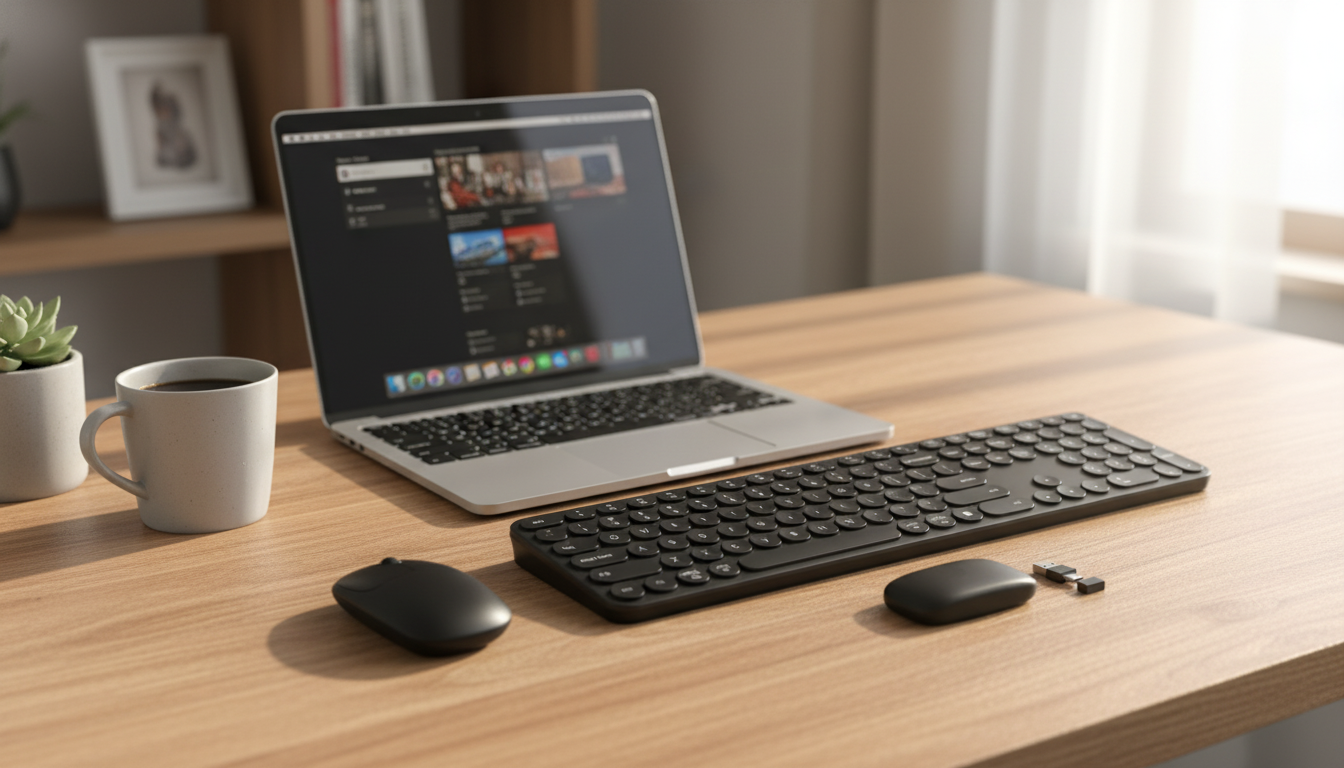
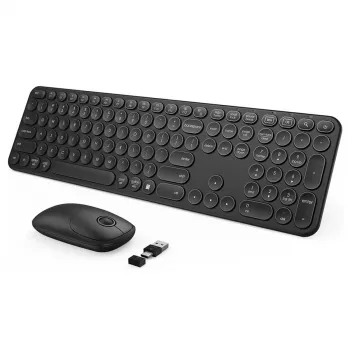
A tidy, travel-ready input set can make a MacBook setup feel more like a full workstation—without extra cables or dongles. This wireless keyboard and mouse combo is designed to pair easily with MacBook Pro and MacBook Air models that rely on USB-C, keeping desks and backpacks lightweight and uncluttered. Whether you’re building a calm home office corner or bouncing between campus, cafés, and conference rooms, a reliable keyboard-and-mouse pair helps you work faster and sit more comfortably.
If you often connect your MacBook to an external display, a separate keyboard lets you place the laptop higher (or off to the side) while keeping your hands in a neutral position. Pair that with a dedicated mouse and everyday tasks—spreadsheets, drag-and-drop editing, or managing multiple windows—feel smoother than relying on a trackpad alone.
Most modern MacBooks work well with standard wireless peripherals, but a quick check can prevent frustrating hiccups—especially when hubs, docks, and crowded USB environments are involved. Apple’s guidance on connecting wireless accessories can also be helpful when troubleshooting: Apple Support — Use Bluetooth devices with your Mac.
| Item to check | What to look for | Why it matters |
|---|---|---|
| MacBook ports | USB-C/Thunderbolt ports available | Ensures a clean, dongle-free connection path |
| macOS input support | Standard keyboard/mouse support enabled | Helps avoid missing keys, lag, or mapping issues |
| Work location | Distance and obstacles | Wireless performance improves with fewer barriers |
| Hubs & docks | Quality hub with stable USB-C connection | Prevents random disconnects and power/connection drops |
For deeper background on USB-C capabilities and best practices, the USB Implementers Forum (USB-IF) — USB Type-C resources is a reliable reference.
A small preparation step makes a big difference: decide where the USB-C connection will live. If you use a hub, choose one that sits close to the MacBook rather than dangling behind a monitor—shorter, cleaner routing can help keep wireless connections stable.
After pairing/connecting, it’s worth checking keyboard shortcuts and modifier key behavior if you switch between multiple Macs or layouts. Apple’s shortcut reference is handy for validating common commands: Apple Support — Mac keyboard shortcuts.
One of the most practical upgrades is reclaiming space: a wireless combo reduces cable sprawl and makes it easier to reset your desk quickly. When it’s time to move, you can slip both devices into a bag without worrying about wrapping cords or snagging connectors.
Wireless reliability often comes down to placement. If you’re using a dock, try a different port or move the hub to the side of the laptop rather than behind a display. Also consider local interference: USB 3.0 devices and dense adapter stacks can introduce noise that impacts certain wireless receivers.
| Product | Price | Availability |
|---|---|---|
| USB & Type C Wireless Keyboard and Mouse Combo for Apple MacBook Pro & Air | $41.51 | In stock |
Yes, as long as your MacBook has USB-C/Thunderbolt ports available and macOS recognizes standard keyboard/mouse (HID) devices. If you connect through a hub or dock, hub quality and placement can affect stability.
Lag is usually caused by interference, too much distance, low power, or a receiver positioned behind metal objects. Moving the USB-C connection closer and adjusting macOS tracking settings often improves responsiveness.
Open macOS Keyboard settings to select the correct input source/layout and verify modifier key mapping if keys seem swapped. After changing settings, test common shortcuts to confirm everything behaves as expected.





Leave a comment